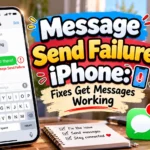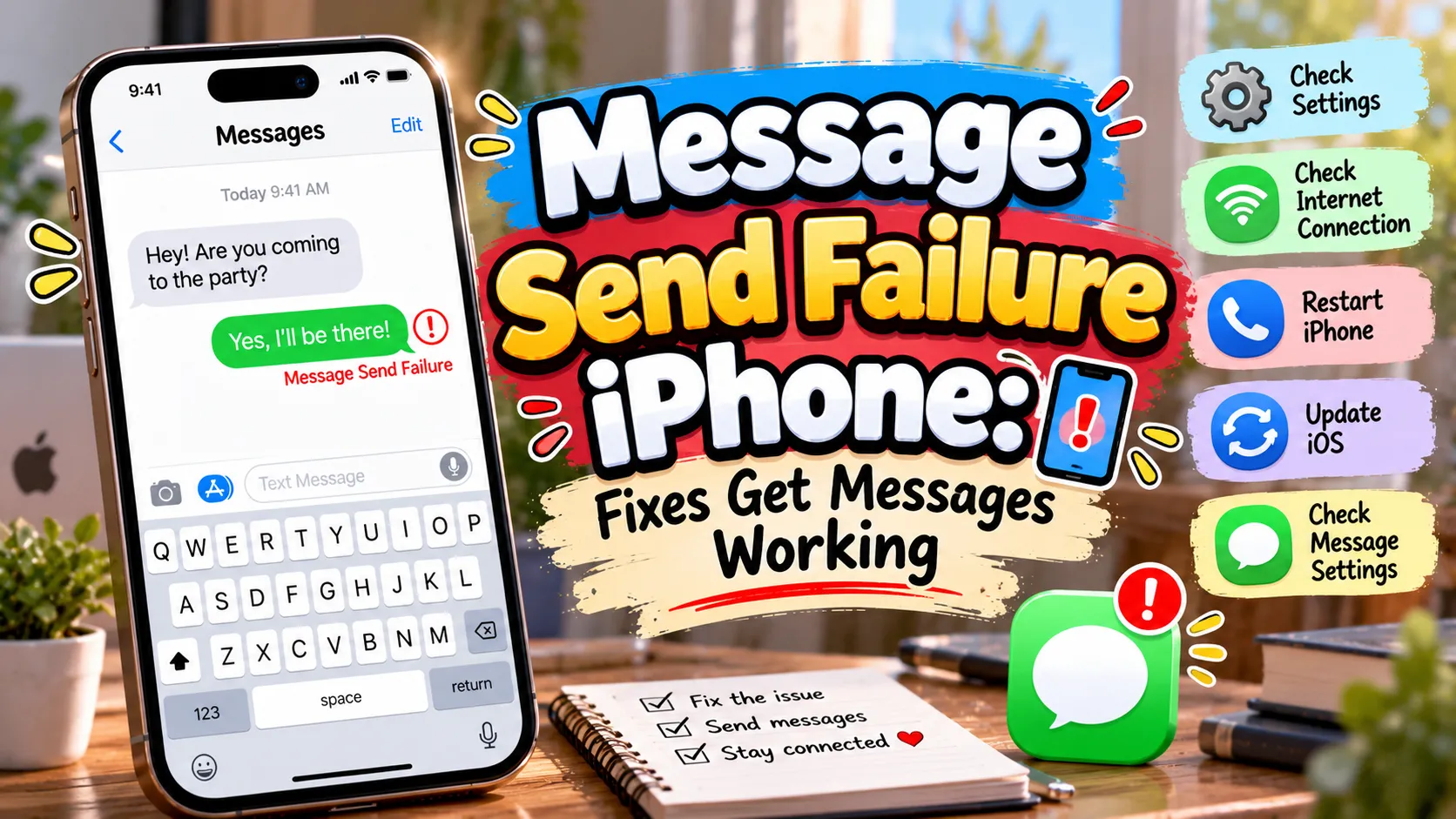
Message send failure iPhone errors can appear at the worst possible time, especially when you need to contact someone quickly. You might see a red exclamation mark, a “Not Delivered” warning, or a message that refuses to leave your screen. Sometimes, the problem affects one contact. In other cases, every text message fails, even when your internet connection seems fine. Fortunately, many messaging problems have simple solutions that you can try at home. Understanding the cause helps you choose the right fix without wasting time on unnecessary settings. Whether you use iMessage, SMS, or RCS messaging, a few careful checks can often restore normal communication.
Your iPhone may fail to send messages because of weak cellular coverage, disabled messaging settings, an incorrect recipient number, or a temporary Apple service outage. iMessage also depends on an internet connection, while traditional SMS usually requires cellular service and an appropriate carrier plan. Therefore, identifying the type of message that fails is an important first step. This guide explains common iPhone texting errors, practical troubleshooting steps, and settings worth checking before contacting your carrier. You will also discover how to handle blue and green message bubbles, fix group chat problems, and prevent repeated delivery failures. The instructions cover recent iOS versions, although some menu names may vary slightly depending on your device. Start with the simplest checks, then move to more advanced solutions if your messages still will not send.
Why Does Message Send Failure Happen on iPhone?
A message send failure usually means your iPhone could not deliver a text through the selected messaging service. Common causes include poor signal, internet problems, incorrect settings, and carrier restrictions.
iMessage requires an internet connection, while SMS generally relies on your cellular network. RCS availability and features depend on your iPhone software and carrier support.
1. Message Send Failure iPhone After Checking Your Network
A weak connection can interrupt iMessage delivery or prevent your iPhone from reaching the cellular network. Before changing advanced settings, check whether your phone has a reliable connection.
- Check the cellular signal bars.
- Move to an area with better reception.
- Connect to a trusted Wi-Fi network.
- Open a website to test your internet.
- Turn Airplane Mode on for 10 seconds, then turn it off.
- Switch between Wi-Fi and cellular data.
- Check whether other internet apps work.
- Restart your Wi-Fi router if necessary.
- Try sending a message again.
- Check whether the problem affects every contact.
If internet apps work but SMS messages fail, check cellular service and your carrier plan next. If iMessage fails while SMS works, investigate your internet connection and iMessage settings.
2. Message Send Failure iPhone After Restarting Your Device
A temporary software glitch can stop the Messages app from sending texts correctly. Restarting your iPhone refreshes its system processes without deleting your personal information.
- Open Settings.
- Tap General.
- Select Shut Down.
- Slide the power control to turn off your iPhone.
- Wait about 30 seconds.
- Turn your iPhone back on.
- Unlock the device.
- Open the Messages app.
- Select the conversation that failed.
- Send a short test message.
You can also restart your iPhone using its physical buttons. The exact button combination depends on your model. If restarting fixes the issue, you probably encountered a temporary software or network problem.
3. Fix iMessage Activation and Delivery Problems
iMessage uses Apple’s messaging service to send messages over Wi-Fi or cellular data. Blue message bubbles generally indicate iMessage, while green bubbles indicate SMS, MMS, or RCS, depending on your conversation and settings.
If iMessage activation fails, your phone number or Apple Account may need attention. Check these settings before changing other options.
- Open Settings.
- Tap Apps, then Messages, on recent iOS versions.
- Open older versions of iOS by selecting Messages directly in Settings.
- Check whether iMessage is enabled.
- Open Send & Receive.
- Confirm that your phone number is selected.
- Check the Apple Account associated with iMessage.
- Make sure your internet connection works.
- Restart your iPhone after changing settings.
- Allow time for activation if the status says it is waiting.
Activation sometimes requires SMS messaging and may involve carrier charges. If activation remains unsuccessful, check Apple’s system status and contact your carrier if necessary.
4. Enable Send as Text Message When iMessage Fails
Your iPhone may offer an SMS alternative when iMessage cannot deliver a message. This option can help when the recipient’s device is offline or iMessage is temporarily unavailable.
Open Settings and select Messages. Find the Send as Text Message option and enable it if your iOS version offers it.
However, this setting does not guarantee delivery. Your carrier must support SMS, and your plan must allow it. Standard text messaging may incur charges depending on your plan.
If a message fails, tap the red exclamation mark when available. Choose Try Again first. If the option appears, select Send as Text Message instead. Remember that SMS messages may not have the same encryption or features as iMessage.
5. Check Cellular Service and Carrier Settings
SMS and MMS depend on your carrier’s network, account status, and supported messaging features. Therefore, a message send failure can occur even when your iPhone connects to Wi-Fi.
Start by checking whether you can make calls and receive ordinary text messages. If both functions fail, your cellular connection or account may be responsible.
Next, check for a carrier settings update. Open Settings, select General, and tap About. Wait briefly to see whether an update prompt appears. Install it if your iPhone offers one.
You should also confirm that your SIM or eSIM remains active. If you recently changed carriers, transferred your number, or activated a new eSIM, contact your carrier to verify the activation. Avoid deleting an eSIM unless your carrier explains how to restore it.
6. Correct the Recipient’s Phone Number
Sometimes the problem affects only one conversation. In that case, check the recipient’s phone number or email address before changing your entire device’s settings.
A mistyped digit can prevent SMS delivery. Similarly, an outdated number may belong to someone else or no longer receive messages.
Open the contact card and verify the complete number, including the country code when needed. If the recipient uses iMessage, confirm that you selected the correct phone number or email address.
You can also start a new conversation with the verified contact details. Avoid repeatedly sending sensitive messages while you investigate. If the recipient recently changed devices or phone numbers, ask them to confirm which address they currently use.
7. Update iOS to Fix Messaging Bugs
An outdated iOS version can contain software bugs that affect connectivity, notifications, or message delivery. Installing an available update may resolve problems that persist after restarting your device.
Before updating, connect your iPhone to Wi-Fi and ensure it has sufficient battery power. Back up important information when practical.
Open Settings, select General, and tap Software Update. If an update is available, review its details and follow the installation instructions.
After updating, open Messages and test the affected conversation. Menu labels and features can vary between iOS releases, so follow the options shown on your device.
An update may not fix carrier outages or incorrect account settings. However, it helps eliminate one common software-related cause of persistent messaging errors.
8. Fix Message Send Failure iPhone in Group Chats
Group messages can fail for reasons that do not affect individual conversations. Different participants may use iMessage, SMS, MMS, or RCS, depending on their devices, carriers, and settings.
First, send a test message to one person. If that works, return to the group conversation and check whether the failure happens only there.
Confirm that cellular data works if your carrier requires it for MMS. Also check that your carrier plan supports group messaging and that your device has the necessary messaging settings.
If the group contains iPhone and Android users, the conversation may use a different service than a blue-bubble iMessage chat. Ask another participant whether they can send messages successfully.
If only one group fails, start a new conversation only when appropriate. Keep in mind that creating a new group does not automatically repair a carrier or network problem.
9. Check Blocked Contacts and Message Filters
Blocking usually prevents messages from a blocked person from reaching you. It does not generally explain why every outgoing message fails, but contact settings are worth checking when the issue involves one person.
Open Settings and locate the blocked contacts section under Messages or Phone, depending on your iOS version. Review the list for accidental blocks.
You should also confirm that the recipient has not blocked your number, although your iPhone cannot reliably verify another person’s blocking settings.
Message filters can hide conversations from your main inbox. They do not normally prevent outgoing texts from being delivered. If you cannot find a conversation, check your filtered messages and recently deleted messages where available.
10. Reset Network Settings When Nothing Else Works
Resetting network settings can help when your iPhone repeatedly fails to connect to cellular or Wi-Fi services. However, use this step only after trying simpler troubleshooting methods.
Open Settings, select General, and choose Transfer or Reset iPhone. Tap Reset, then choose Reset Network Settings.
Your iPhone will restart its network configuration. This action removes saved Wi-Fi networks and passwords and resets certain cellular, VPN, and network settings. It does not normally erase your photos, apps, or messages.
After the reset, reconnect to Wi-Fi and test message delivery. You may need to reconfigure VPN settings or other network preferences.
Do not select Erase All Content and Settings by mistake. That option removes your device’s content and is not necessary for ordinary messaging troubleshooting.
11. Check Apple’s System Status for iMessage
Sometimes, the problem is not your iPhone at all. Apple’s messaging services can experience temporary interruptions that affect activation or delivery.
Visit Apple’s official System Status page and look for iMessage. Check whether Apple reports an outage or service disruption.
If iMessage has an active incident, wait for Apple to restore the service. Repeatedly resetting your phone will not fix a server-side outage.
You can test ordinary SMS separately if your carrier service is working. However, switching to SMS may not be available or appropriate in every situation.
Once the service returns to normal, reopen Messages and try sending your message again. If the issue continues long after the outage ends, return to the device and network checks above.
12. Free Up Storage and Check Messages App Behavior
Low storage is not the most common cause of sending failures, but limited device space can contribute to broader software problems. Check your storage if Messages behaves unusually or other apps also malfunction.
Open Settings, tap General, and select iPhone Storage. Review the available space and remove unnecessary downloads or large files if needed.
You can also close and reopen the Messages app. If the app freezes, restart the phone before trying more disruptive changes.
Avoid deleting entire conversations as your first troubleshooting step. Messages may contain important information, and deleting them rarely fixes a network-related delivery failure.
If your iPhone has adequate storage and other apps work normally, focus on the messaging service, recipient details, and carrier settings instead.
13. Contact Your Carrier or Apple Support
If none of the earlier solutions works, professional support can help identify a problem with your account, device, or messaging service.
Contact your carrier when SMS or MMS fails, cellular service is unreliable, or your phone number recently moved to a new SIM or eSIM. Ask whether messaging is enabled on your account and whether an outage affects your area.
Contact Apple Support when iMessage activation remains stuck, the Messages app repeatedly crashes, or the problem continues despite working carrier service.
Before contacting support, record the exact error, the time it occurred, and whether the message used a blue or green bubble. Mention which troubleshooting steps you already tried.
This information helps support staff narrow down the cause without asking you to repeat every basic check.
How to Prevent Future Message Send Failure on iPhone
You can reduce the chances of future messaging problems by keeping your iPhone updated and checking your connectivity regularly. These simple habits also help you recognize network problems before they interrupt important conversations.
Keep your carrier settings current, maintain an active mobile plan, and confirm that your phone number remains registered correctly. When traveling, check whether your carrier supports messaging in your destination. If you use iMessage, make sure your Apple Account and phone number remain available under Send & Receive.
Avoid resetting network settings whenever a single message fails. Instead, identify whether the problem affects one contact, one messaging service, or every conversation. This approach saves time and protects your existing preferences.
When Should You Seek Professional Help for iPhone Texting Errors?
You should contact your carrier or Apple Support when message delivery continues to fail after basic troubleshooting. Persistent errors can indicate an account restriction, an activation problem, a carrier outage, or a software issue.
Seek carrier assistance if calls and SMS fail together or your SIM stops connecting to the network. Ask Apple for help if iMessage activation remains unsuccessful despite a stable internet connection. You should also seek support if the Messages app crashes repeatedly or the same problem returns after an iOS update.
Before requesting help, note your iPhone model, iOS version, exact error message, and affected messaging type. Never share your Apple Account password or verification codes with someone claiming to provide support.
Frequently Asked Questions About Message Send Failure on iPhone
Why does my iPhone say Not Delivered when I send a text?
Your iPhone may display this warning when a message cannot reach its recipient. Weak cellular service, internet interruptions, incorrect contact details, or temporary service problems can cause this error.
Check your connection first, then tap the red exclamation mark and choose Try Again. If the message still fails, check whether you can send other messages.
Why are my iPhone messages green instead of blue?
Blue bubbles usually indicate iMessage, while green bubbles indicate SMS, MMS, or RCS messaging. The exact service depends on your settings, carrier, software version, and recipient’s device.
A green bubble is not automatically an error. However, if the message fails to send, check your cellular connection and carrier messaging settings.
How do I fix message send failure on iPhone without losing messages?
Start by checking your internet connection, restarting your phone, and confirming your messaging settings. These steps usually do not delete conversations or personal files.
If necessary, reset network settings rather than erasing your iPhone. Network resets remove saved Wi-Fi passwords and certain network preferences, but they do not normally delete messages.
Why can I receive texts but cannot send them on my iPhone?
This problem may indicate a carrier restriction, an account issue, an incorrect SMS configuration, or a temporary network problem. Your ability to receive messages does not guarantee that outgoing messaging works correctly.
Check your mobile plan and cellular signal. If the issue continues, contact your carrier and ask them to verify outgoing SMS service.
Why does iMessage say Waiting for Activation?
iMessage may need additional time to verify your phone number. Activation can also fail because of internet problems, SMS restrictions, incorrect date settings, or carrier issues.
Check your connection, confirm the date and time settings, and make sure your number appears under Send & Receive. If activation remains stuck, consult Apple Support or your carrier.
Can message send failure happen because someone blocked my number?
It is possible that the recipient blocked your number, but a delivery error alone cannot confirm that. Similar errors can occur because of network problems, an inactive phone, or incorrect contact information.
Verify the recipient’s number and check whether messages to other contacts work. Avoid assuming that someone blocked you based on a single failed message.
Why do my iPhone messages fail only in group chats?
Group conversations may use different messaging services depending on the participants’ devices and carrier support. MMS or RCS availability, cellular data, and group messaging settings can affect delivery.
Test a message to one participant separately. If individual messages work but the group does not, check your carrier’s group messaging support and the settings for that conversation.
Will resetting my iPhone fix message send failure?
A network settings reset may resolve connection-related problems, but a full factory reset is rarely the right first step. Start with simpler fixes and reset network settings only when necessary.
A factory reset erases device content and settings unless you restore from a backup. Contact Apple Support before taking that step if the problem remains unresolved.
Conclusion
A message send failure iPhone error can interrupt important conversations, but you can often fix it with a few simple checks. Start by testing your internet connection, restarting your device, and checking iMessage settings. Next, verify your recipient’s number, carrier service, and available iOS updates. If messages still fail, check Apple’s system status or reset your network settings carefully. Persistent SMS problems may require help from your carrier, while ongoing iMessage issues may need Apple Support. By identifying the cause first, you can restore messaging more efficiently and avoid unnecessary resets or data loss.

Ethan Brooks is a content writer specializing in messages, wishes and modern communication trends. He creates simple, engaging, and relatable content that helps people express their thoughts and emotions in the best way possible.