Recall message Outlook is a useful feature when you accidentally send an email, forget an attachment, or notice a mistake after clicking Send. Instead of worrying about your error, you can check whether Outlook allows you to recall the message. However, success depends on your account type, the recipient’s mailbox, and your organization’s email settings.
Microsoft Outlook offers a message recall feature for certain work and school accounts. Eligible users can attempt to retrieve an email sent to another person in the same Microsoft 365 organization. Depending on the Outlook version and account configuration, you may also have access to updated recall options and a recall status report. Personal Outlook.com accounts and messages sent to external recipients generally have different limitations. Therefore, knowing which Outlook version you use is essential before trying to recover a message.
In this guide, you’ll learn how to recall a sent email in Outlook, where to find the recall option, and what happens after you use it. You’ll also discover practical alternatives when recall isn’t available. Whether you use Outlook on Windows, the web, or a mobile device, understanding these options can help you respond quickly. We’ll explain common errors, recall notifications, and the difference between recalling and delaying an email. By the end, you’ll know which method fits your situation and how to reduce the chances of sending the wrong message again.
How Do You Recall a Message in Outlook?
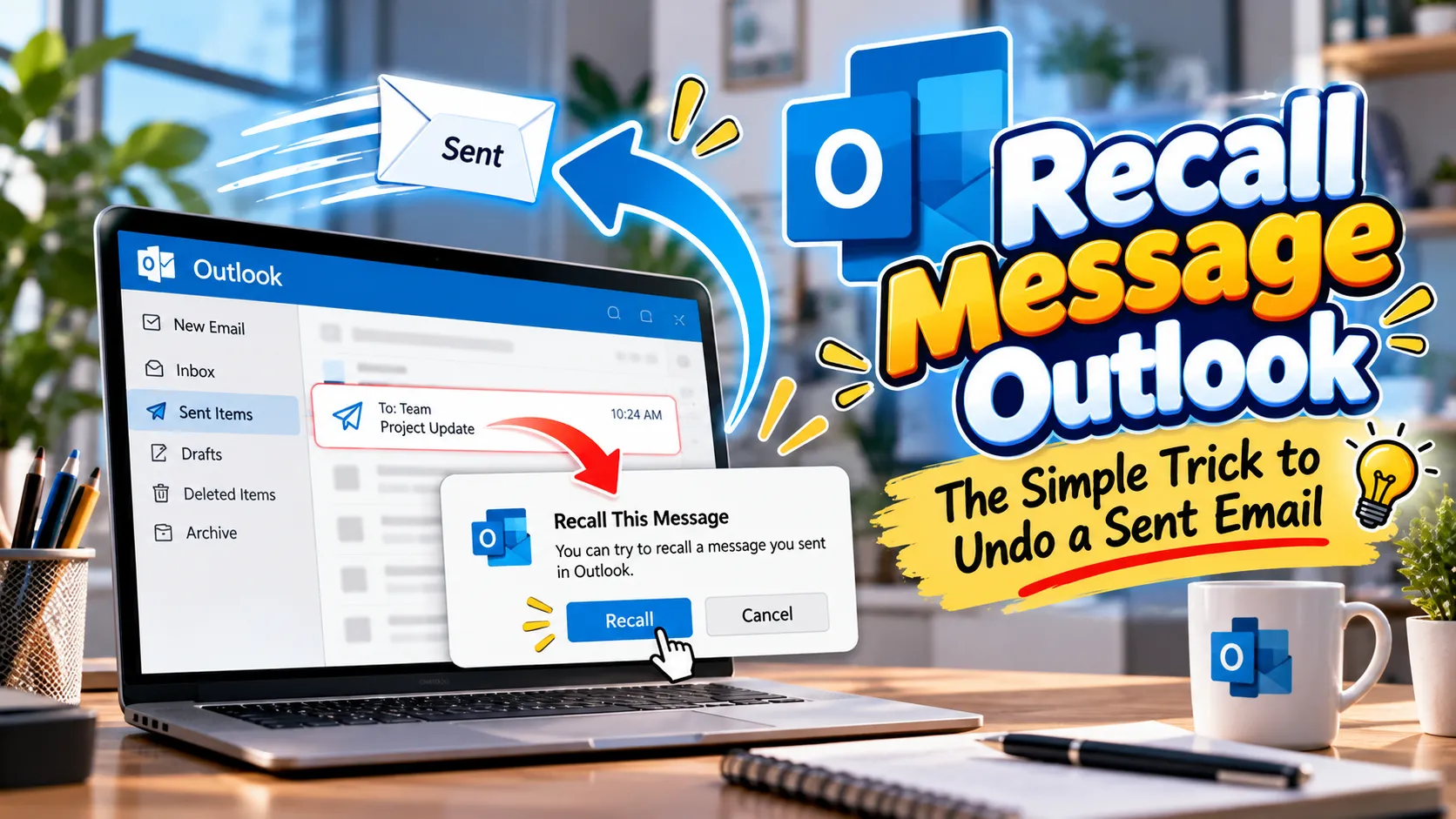
You can recall an eligible email through Outlook’s Sent Items folder, provided your account and recipient meet Microsoft’s requirements.
Open Sent Items and select the message you want to retrieve. Look for the Recall Message option in the message’s available actions or ribbon.
Choose the recall option and confirm the request if prompted. Then check the recall status report to see whether Outlook successfully retrieved the email.
45 Recall Message Outlook Tips for Quick Email Recovery
A successful email recall starts with understanding your Outlook account and the recipient’s mailbox. These practical ideas cover message recovery, email corrections, and ways to prevent common sending mistakes.
- Recall Sent Email
- Undo Email Send
- Retrieve Outlook Message
- Delete Unread Email
- Replace Sent Message
- Recover Email Mistake
- Fix Wrong Recipient
- Correct Email Content
- Remove Missing Attachment
- Check Recall Status
- Open Sent Items
- Find Recall Option
- Confirm Recall Request
- Review Recall Report
- Recover Work Email
- Recall Office Message
- Manage Email Errors
- Fix Sending Mistakes
- Retrieve Unread Message
- Replace Wrong Email
- Correct Subject Line
- Remove Duplicate Message
- Check Recipient Status
- Review Sent Messages
- Find Email History
- Track Recall Results
- Update Email Details
- Repair Message Errors
- Cancel Pending Send
- Delay Email Delivery
- Enable Undo Send
- Protect Email Privacy
- Manage Work Mail
- Fix Outlook Problems
- Check Account Type
- Review Mail Settings
- Avoid Accidental Sending
- Improve Email Accuracy
- Prevent Future Mistakes
- Confirm Message Delivery
- Check Mailbox Access
- Use Recall Carefully
- Send Corrected Email
- Review Email Recipients
- Improve Sending Habits
Recall Message Outlook Options for Microsoft 365 Users
Microsoft 365 work and school accounts can support message recall when the sender and recipient belong to the same organization. The following options help you understand the available controls and choose the right recovery method. Microsoft Support+1
- Microsoft 365 Recall
- Exchange Email Recall
- Outlook Web Recall
- New Outlook Recall
- Classic Outlook Recall
- Mac Outlook Recall
- Mobile Outlook Recall
- Work Account Recovery
- School Account Recovery
- Organization Mail Recall
- Internal Email Recovery
- Unread Message Removal
- Message Replacement Option
- Recall Status Report
- Successful Recall Notice
- Pending Recall Status
- Failed Recall Notice
- Message Action Menu
- Recall Confirmation Window
- Sent Folder Access
- Email Retrieval Request
- Mailbox Message Removal
- Work Email Correction
- Recipient Mailbox Check
- Corporate Email Recovery
- Business Message Recall
- Outlook Ribbon Actions
- Advanced Message Actions
- Message Recall Button
- Exchange Mailbox Support
- Internal Recipient Check
- Email Recall Settings
- Account Eligibility Check
- Organization Policy Review
- Outlook Message Actions
- Mailbox Recall Report
- Work Email Replacement
- Professional Email Correction
- Recall Feature Availability
- Outlook Version Check
- Microsoft Email Recovery
- Office Email Management
- Corporate Mail Correction
- Secure Email Handling
- Outlook Recall Guidance
Recall Message Outlook Alternatives for Personal Accounts
Personal Outlook.com accounts cannot use the same message recall feature available to eligible Microsoft 365 work and school accounts. However, you can use sending delays and follow-up emails to manage mistakes. Microsoft Support+1
- Outlook Undo Send
- Outlook.com Delay
- Personal Email Correction
- Gmail Message Correction
- Hotmail Email Recovery
- Live Mail Correction
- External Recipient Followup
- Send Apology Email
- Corrected Email Message
- Attachment Followup
- Wrong Address Followup
- Updated Information Email
- Email Clarification Note
- Professional Correction Message
- Short Apology Message
- Replacement Email Draft
- Followup Email Template
- Message Correction Notice
- Recipient Error Response
- Missing File Followup
- Incorrect Link Correction
- Revised Document Email
- Updated Subject Message
- Corrected Details Notice
- Email Retraction Request
- Privacy Incident Response
- Accidental Email Response
- Personal Account Settings
- Undo Send Configuration
- Delayed Delivery Option
- Scheduled Email Sending
- Email Draft Review
- Sending Delay Settings
- Mail Compose Settings
- Personal Mailbox Management
- External Mailbox Limitations
- Outlook.com Sending Options
- Email Followup Strategy
- Clear Correction Language
- Professional Followup Etiquette
- Email Error Prevention
- Message Accuracy Checks
- Recipient Confirmation Steps
- Personal Email Safety
- Better Email Habits
Recall Message Outlook Steps for New Outlook
New Outlook for Windows provides a recall option for eligible messages. Open the sent email in its own window, use the recall command, and review the resulting report. Microsoft Support
- Open Sent Items
- Find Sent Message
- Double Click Email
- Open Message Window
- Select Recall Message
- Confirm Recall Request
- Wait For Report
- Open Recall Report
- Check Recall Outcome
- Review Pending Status
- Confirm Successful Recall
- Identify Failed Recall
- Replace Original Message
- Edit Replacement Email
- Attach Missing File
- Correct Email Subject
- Fix Message Content
- Verify Recipient Address
- Check Account Eligibility
- Confirm Organization Match
- Review Message Status
- Follow Recall Instructions
- Open Message Actions
- Check Ribbon Options
- Select Correct Email
- Confirm Original Subject
- Avoid Duplicate Sending
- Verify Replacement Details
- Send Corrected Version
- Check Delivery Report
- Review Inbox Notifications
- Check Recall Permissions
- Retry After Troubleshooting
- Update Outlook Application
- Confirm Network Connection
- Review Mailbox Access
- Check Organizational Policy
- Document Recall Outcome
- Follow Up Professionally
- Avoid Repeated Mistakes
- Keep Email Records
- Review Sending Workflow
- Confirm Final Message
- Improve Outlook Accuracy
- Manage Email Corrections
Recall Message Outlook Steps for Classic Outlook
Classic Outlook offers a recall command through the Message tab or its additional actions menu. You must open the sent message in a separate window rather than relying on the reading pane. Microsoft Support
- Open Classic Outlook
- Select Sent Items
- Double Click Message
- Open Message Tab
- Find More Actions
- Select Recall Message
- Choose Delete Copies
- Choose Replace Message
- Confirm Recall Request
- Send Replacement Email
- Review Recall Report
- Check Unread Copies
- Verify Message Selection
- Check Exchange Account
- Inspect Ribbon Layout
- Open Actions Menu
- Find Recall Command
- Review Available Options
- Check Message Permissions
- Confirm Recipient Details
- Correct Missing Attachment
- Update Message Content
- Fix Incorrect Subject
- Replace Wrong Information
- Confirm New Email
- Review Recall Outcome
- Check Failed Requests
- Confirm Mailbox Connection
- Review Account Settings
- Check Outlook Version
- Update Desktop Outlook
- Follow IT Guidance
- Verify Organization Policy
- Avoid Duplicate Messages
- Keep Corrected Draft
- Confirm Replacement Details
- Review Sending History
- Check Message Security
- Understand Recall Limits
- Use Recall Carefully
- Improve Email Workflow
- Prevent Sending Errors
- Confirm Final Delivery
- Maintain Professional Etiquette
- Review Email Accuracy
Recall Message Outlook Troubleshooting Ideas
Sometimes the recall command does not appear, or Outlook reports an unsuccessful attempt. These troubleshooting ideas help identify account restrictions, version differences, and mailbox issues before you try another solution. Microsoft Support+1
- Missing Recall Button
- Recall Option Unavailable
- Unsupported Email Account
- External Recipient Limitation
- Opened Message Problem
- Failed Recall Request
- Pending Recall Report
- Delayed Status Update
- Exchange Account Problem
- Outlook Version Difference
- Outdated Outlook Application
- Disabled Recall Feature
- Organization Policy Restriction
- Protected Message Limitation
- Mailbox Connection Error
- Temporary Server Problem
- Incorrect Message Selection
- Reading Pane Limitation
- Recall Permission Issue
- Recipient Account Mismatch
- Personal Account Restriction
- Gmail Recipient Limitation
- Hotmail Recipient Limitation
- Outlook.com Account Restriction
- Live.com Recipient Limitation
- Message Already Opened
- Recall Status Uncertainty
- Incorrect Account Selection
- Missing Report Notification
- Mailbox Access Problem
- Outlook Interface Changes
- Unsupported Mac Version
- Legacy Mac Limitation
- Message Security Restriction
- Recall Request Processing
- Network Connection Check
- Mailbox Availability Check
- Administrator Support Request
- Microsoft Support Guidance
- Alternative Email Correction
- Replacement Message Strategy
- Followup Communication Plan
- Email Recovery Limitations
- Recall Error Investigation
- Outlook Settings Review
Recall Message Outlook Ideas for Mac Users
Outlook for Mac supports message recall in compatible versions when both parties use Microsoft 365 work or school accounts within the same organization. Menu placement can vary by version, so check the available message actions. Microsoft Support
- Open Sent Folder
- Select Sent Message
- Open Separate Window
- Find Recall Button
- Confirm Recall Action
- Review Status Report
- Check Recall Success
- Review Pending Request
- Investigate Failed Recall
- Update Outlook Mac
- Check Supported Version
- Verify Account Type
- Confirm Organization Match
- Inspect Message Toolbar
- Customize Toolbar Options
- Open Shortcut Menu
- Control Click Message
- Select Recall Action
- Confirm Message Selection
- Review Recipient Address
- Check Mailbox Permissions
- Verify Message Eligibility
- Replace Original Email
- Correct Email Details
- Attach Missing Document
- Fix Incorrect Information
- Send Updated Message
- Review Mac Settings
- Check Software Updates
- Confirm Network Access
- Contact IT Support
- Check Recall Availability
- Understand Mac Limitations
- Avoid Legacy Version Issues
- Review Mailbox Reports
- Confirm Corrected Content
- Prevent Repeat Errors
- Manage Professional Messages
- Check Sending History
- Improve Email Accuracy
- Review Recipient Details
- Use Delayed Sending
- Enable Undo Send
- Prepare Email Drafts
- Check Final Message
- Maintain Clear Communication
Recall Message Outlook Methods for Mobile Devices
Outlook mobile users may find a recall action in the message menu when their accounts meet Microsoft’s requirements. Open the sent email and check its available actions instead of assuming every message supports recall. Microsoft Support
- Open Outlook Mobile
- Open Sent Folder
- Select Sent Email
- Open Message Details
- Tap More Options
- Find Recall Action
- Confirm Recall Request
- Check Status Email
- Review Recall Result
- Verify Work Account
- Confirm Organization Match
- Check Recipient Eligibility
- Review Message Age
- Inspect App Version
- Update Outlook Mobile
- Check Account Settings
- Confirm Mailbox Connection
- Review Recall Availability
- Correct Sent Information
- Send Followup Message
- Attach Missing Document
- Fix Wrong Recipient
- Clarify Email Details
- Prepare Corrected Version
- Check Replacement Content
- Review Message History
- Avoid Duplicate Followups
- Check Inbox Notifications
- Confirm Final Details
- Use Desktop Outlook
- Try Web Outlook
- Check Available Commands
- Contact Workplace Support
- Understand Mobile Limitations
- Verify Account Permissions
- Review Sending Errors
- Manage Email Corrections
- Keep Communication Professional
- Check Recipient Information
- Use Undo Send
- Review Draft Before Sending
- Prevent Future Errors
- Maintain Email Accuracy
- Follow Up Promptly
- Confirm Correction Sent
Recall Message Outlook Alternatives for Email Mistakes
A recall attempt cannot guarantee that a recipient will never see your original message. When recall is unavailable or unsuccessful, a clear correction email often provides the most practical next step. Microsoft Support+1
- Send Correction Email
- Write Brief Apology
- Explain Missing Attachment
- Provide Corrected Document
- Clarify Wrong Information
- Correct Recipient Details
- Share Updated Link
- Fix Incorrect Date
- Replace Wrong Numbers
- Update Meeting Details
- Send Revised Proposal
- Correct Subject Line
- Clarify Earlier Message
- Request Message Deletion
- Contact Recipient Directly
- Explain Accidental Sending
- Send Updated Instructions
- Provide Accurate Information
- Withdraw Outdated Details
- Share Corrected File
- Confirm Revised Deadline
- Clarify Confidential Information
- Notify Relevant Colleagues
- Follow Company Procedures
- Report Sensitive Disclosure
- Contact IT Administrator
- Follow Security Guidance
- Document Email Incident
- Review Recipient List
- Confirm Correct Address
- Check Attachment Contents
- Verify Document Version
- Use Clear Language
- Keep Apology Professional
- Avoid Blaming Recipients
- Explain Necessary Changes
- Limit Unneeded Details
- Confirm Followup Delivery
- Preserve Relevant Records
- Avoid Repeated Messages
- Improve Future Reviews
- Use Draft Review
- Enable Sending Delay
- Prevent Similar Errors
- Maintain Professional Trust
Recall Message Outlook Prevention Tips
Preventing an accidental email can save more time than trying to recover one afterward. A simple review routine helps you check recipients, attachments, and message details before sending important communication.
- Review Recipient Names
- Verify Email Addresses
- Check Carbon Copy
- Review Blind Copy
- Confirm Email Subject
- Proofread Message Content
- Check Spelling Errors
- Verify Important Dates
- Confirm Document Attachments
- Open Attached Files
- Check File Versions
- Verify Shared Links
- Remove Incorrect Recipients
- Review Confidential Details
- Check Sensitive Information
- Confirm Meeting Times
- Verify Time Zones
- Read Before Sending
- Pause Before Clicking
- Use Draft Folders
- Enable Undo Send
- Delay Email Delivery
- Schedule Important Emails
- Review Long Messages
- Confirm Business Details
- Check Recipient Permissions
- Use Approved Templates
- Verify Financial Figures
- Confirm Client Names
- Check Legal Documents
- Review Internal Messages
- Avoid Rushed Sending
- Create Review Checklists
- Use Email Signatures
- Confirm Final Attachments
- Check Reply All
- Verify Forwarded Content
- Remove Private Notes
- Review Message Formatting
- Check Broken Links
- Confirm Correct Account
- Separate Personal Accounts
- Update Mail Settings
- Improve Email Habits
- Protect Business Reputation
Recall Message Outlook Settings and Email Management
Outlook settings can help reduce sending mistakes, but available controls differ by platform and account. Review your composing preferences and learn which features your version supports before relying on them. Microsoft Support+1
- Undo Send Settings
- Compose Mail Settings
- Sending Delay Options
- Default Delay Rule
- Scheduled Send Feature
- Draft Message Storage
- Sent Folder Organization
- Message Action Settings
- Outlook Account Preferences
- Microsoft 365 Settings
- Outlook.com Preferences
- Mailbox Permission Review
- Work Account Configuration
- Email Security Settings
- Message Protection Rules
- Attachment Review Process
- Recipient Autocomplete Review
- Contact List Accuracy
- Email Signature Settings
- Default Account Selection
- Message Format Preferences
- Read Receipt Settings
- Delivery Notification Options
- Mailbox Access Controls
- Outlook App Updates
- Desktop Mail Preferences
- Mobile Mail Settings
- Web Mail Controls
- Recall Feature Checks
- Account Type Verification
- Organization Policy Checks
- Email Retention Policies
- Message History Review
- Inbox Notification Settings
- Compose Window Review
- Draft Saving Options
- Sending Workflow Improvements
- Professional Mail Organization
- Email Error Prevention
- Secure Communication Practices
- Mailbox Troubleshooting Steps
- Message Correction Workflow
- Account Access Verification
- Better Email Management
- Consistent Review Habits
Recall Message Outlook Tips for Work and School
Work and school email systems often include administrative rules that affect message recovery. Understanding your organization’s Microsoft 365 environment helps you choose a suitable solution and know when to ask an administrator for assistance.
- Workplace Email Policies
- School Mailbox Rules
- Internal Email Procedures
- Administrator Recall Controls
- Exchange Organization Settings
- Microsoft 365 Permissions
- Corporate Message Recovery
- School Email Correction
- Internal Recipient Verification
- Staff Communication Standards
- Student Email Etiquette
- Confidential Message Handling
- Protected Email Restrictions
- Business Document Correction
- Workplace Followup Messages
- Professional Apology Templates
- Email Incident Reporting
- Security Team Assistance
- Help Desk Support
- IT Administrator Guidance
- Organization Account Checks
- Mailbox Availability Review
- Message Retention Requirements
- Internal Communication Policies
- Data Protection Procedures
- Sensitive Email Reporting
- Business Email Accuracy
- Professional Message Replacement
- Work Account Eligibility
- School Account Eligibility
- Internal Mailbox Support
- Recipient Status Verification
- Email Audit Requirements
- Corporate Privacy Practices
- Secure Document Sharing
- Official Communication Standards
- Message Recall Training
- Email Safety Awareness
- Administrative Policy Review
- Better Workplace Communication
- Reliable Sending Practices
- Account Access Troubleshooting
- Message Correction Procedures
- Professional Email Management
- Future Error Prevention
What Happens When You Recall a Message in Outlook?
When you recall a message in Outlook, the system attempts to remove an eligible email from the recipient’s mailbox. The process does not work like a universal delete button. Microsoft requires compatible work or school accounts within the same organization, and the recipient must not have opened the message. Outlook provides a recall status report so you can review the result. Depending on the recipient and message, the request can succeed, remain pending, or fail. Microsoft Support+1
A successful recall can help when you forget an attachment or send incorrect information. However, it cannot guarantee that nobody has already seen, copied, forwarded, or otherwise accessed the original content. If the message contains sensitive information, follow your organization’s security procedures instead of relying solely on recall. For ordinary mistakes, a short correction email can clarify the situation and reduce confusion.
Can You Recall a Message in Outlook.com or Gmail?
Personal Outlook.com accounts do not support the same message recall feature available to eligible Microsoft 365 business and school accounts. Gmail and other external recipients also fall outside the standard Outlook recall requirements. Therefore, a message sent from a personal account usually cannot be retrieved after it has been sent. Microsoft Support+1
Your best alternative is to enable Undo Send before sending future emails. Outlook.com lets you configure a short delay of up to 30 seconds. During that window, you can cancel the outgoing message. Outlook for Mac also offers an Undo Send delay, with configurable periods that can extend beyond the Outlook.com limit. These controls delay sending rather than recall an email that has already reached the recipient. Microsoft Support+1
How Can You Prevent Outlook Email Mistakes?
The easiest way to avoid a stressful recall attempt is to review every important email before sending it. Check the recipient’s address, subject line, message content, and attachments. If you frequently send business emails, create a short checklist and use it consistently. This habit reduces mistakes without adding much time to your workflow.
You can also enable Undo Send where available or configure a sending delay in a compatible Outlook version. For important messages, save a draft and review it before sending. Take extra care with financial details, private information, and attachments. These simple practices make email communication more reliable and help you maintain a professional reputation.
Frequently Asked Questions About Recall Message Outlook
1. Can I recall a message in Outlook after sending it?
Yes, but only when your account and the recipient meet Microsoft’s recall requirements. Both must use Microsoft 365 work or school accounts within the same organization, and the recipient must not have opened the message. Microsoft Support
2. How do I find the Recall Message button in Outlook?
Open your Sent Items folder and double-click the email you want to retrieve. In supported versions, look for Recall Message on the ribbon or in the message actions menu. If the option is missing, check your account type and Outlook version. Microsoft Support
3. Can I recall an Outlook email sent to Gmail?
Generally, no. Outlook’s standard message recall feature does not retrieve messages sent to Gmail or other external accounts. You can send a correction or ask the recipient to disregard the original email instead. Microsoft Support+1
4. Can I recall an email in Outlook after the recipient reads it?
Microsoft’s standard recall requirements specify that the recipient must not have opened the message. If the recipient has already read it, you should not rely on recall to remove the email. Send a correction or contact the recipient directly. Microsoft Support
5. Why is the Recall This Message option missing?
The option may be missing because you use an unsupported account, an incompatible Outlook version, or an organization that restricts the feature. In classic Outlook, the command also requires opening the message in its own window. Check your account and contact your IT administrator if necessary. Microsoft Support
6. Does Outlook notify the recipient when I recall an email?
The recall process generates a status report for the sender. The recipient’s experience can depend on the system and circumstances, so do not assume a recall is invisible. Check your report and follow up appropriately if the original message may have been seen. Microsoft Support
7. Can I recall an email using Outlook on my phone?
Outlook for iOS and Android supports recall in eligible situations. Open the Sent folder, select the message, tap the three-dot menu, and look for Recall. If the command is unavailable, check account eligibility or try a supported desktop version. Microsoft Support
8. What is the difference between Recall and Undo Send?
Recall attempts to retrieve an email after sending, subject to account and recipient requirements. Undo Send delays the outgoing message briefly, allowing you to cancel it before delivery. For personal accounts, Undo Send is often the more practical option. Microsoft Support+1
Conclusion
Knowing how to recall message Outlook emails can save you from unnecessary stress when you send the wrong message or forget an attachment. The key is to check your account type, open the sent email, and look for the recall option. Remember that the feature mainly supports eligible Microsoft 365 work and school accounts within the same organization. Personal accounts generally need alternatives, such as Undo Send or a follow-up email. For better results, review your messages before sending and check the recall status report afterward. A few simple habits can help you communicate confidently and avoid future email mistakes.

Ethan Brooks is a content writer specializing in messages, wishes and modern communication trends. He creates simple, engaging, and relatable content that helps people express their thoughts and emotions in the best way possible.