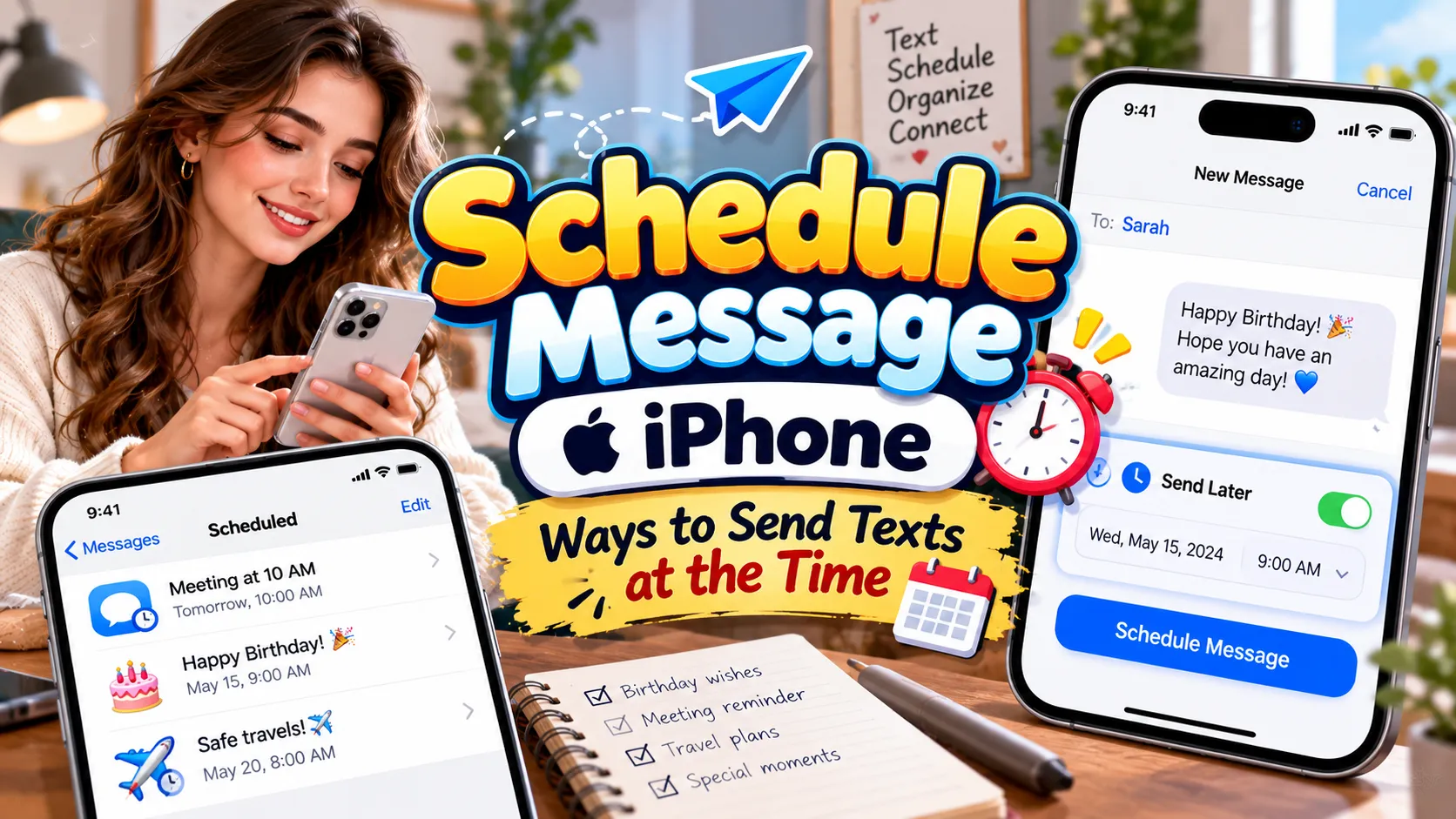
Scheduling a message on your iPhone can make everyday communication much easier. Whether you want to send birthday wishes at midnight or remind someone about an important meeting, the right method saves time. If you want to schedule message iPhone users can send later, you have several options depending on your iOS version and messaging app.
Apple has introduced features that make delayed messaging more convenient. With supported software, you can schedule certain messages directly in the Messages app. You can also use the Shortcuts app to automate messages for specific times and situations. Each method has its own benefits, so choosing the right one depends on your needs. For example, a one-time birthday greeting requires a different setup than a daily reminder. Likewise, sending an iMessage differs from sending a regular SMS text. Understanding these differences helps you avoid missed messages and unnecessary steps.
In this guide, you’ll discover practical ways to schedule iPhone texts, use Apple’s built-in tools, and create useful automations. You’ll also find tips for recurring messages, reminders, work communication, and special occasions. We will explain common problems and show you how to choose the simplest approach. By the end, you’ll know how to prepare a message in advance and send it when the timing matters most. These methods can help you communicate more reliably without keeping every message in mind.
How Can You Schedule a Message on iPhone? 📱
You can schedule an iMessage using Apple’s built-in Send Later feature in the Messages app. This feature is available on iOS 18 and later, and it supports scheduling up to 14 days ahead.
- Open the Messages app on your iPhone.
- Open an existing conversation or start a new one.
- Tap the plus (+) button beside the text field.
- Select Send Later from the available options.
- Choose your preferred date and time.
- Type your message and tap the send arrow.
Your scheduled message will appear in the conversation until its delivery time. You can also edit, reschedule, or delete it before it sends.
1. Schedule Message iPhone Users Can Send With Send Later ✉️
Apple’s Send Later feature is the easiest choice for most iPhone users. It lets you prepare a text now and deliver it at a more suitable time.
- Open Messages
- Select a conversation
- Tap the plus button
- Choose Send Later
- Set the delivery time
- Write your text
- Tap the send arrow
2. Schedule an iPhone Text for a Birthday 🎂
Birthday messages feel more thoughtful when they arrive at the perfect moment. Scheduling lets you prepare your greeting ahead of time instead of worrying about forgetting.
- Choose the birthday person’s conversation
- Open Send Later
- Select the birthday date and time
- Write a personalized greeting
- Check the recipient’s name
- Schedule the message
- Review it before delivery
3. Schedule Text Messages for Work and Meetings 💼
Work messages often need careful timing. A scheduled iPhone text can help you send meeting reminders, project updates, and follow-ups during business hours.
- Prepare a meeting reminder
- Select the correct coworker
- Choose a suitable delivery time
- Include the meeting location
- Add the start time
- Check the wording
- Schedule the message
4. Schedule a Message on iPhone for Early Morning 🌅
Sometimes you want to send a message early without disturbing someone late at night. Write it in advance and choose a reasonable morning delivery time.
- Open the recipient’s conversation
- Tap Send Later
- Choose a morning time
- Write your message
- Check the selected date
- Schedule the text
- Confirm the message appears
5. Schedule Romantic Messages for Someone Special ❤️
A thoughtful message can make an ordinary day feel special. Scheduling helps you remember anniversaries, important milestones, and sweet morning greetings.
- Select your partner’s conversation
- Choose the delivery date
- Set a meaningful time
- Write a personal greeting
- Add a suitable emoji
- Check the recipient
- Schedule your message
6. Schedule Reminder Texts on Your iPhone ⏰
Scheduled texts can help you remind friends, family members, or coworkers about upcoming plans. They work particularly well for one-time reminders with a clear date and time.
- Choose the recipient
- Select Send Later
- Set the reminder time
- Explain what needs attention
- Include important details
- Review the message
- Schedule the reminder
7. Schedule iPhone Messages for Holidays and Special Events 🎉
Holidays can get busy, especially when you want to contact several people. Preparing greetings early helps you stay organized and send thoughtful messages on time.
- Choose the recipient’s conversation
- Select the holiday date
- Pick a suitable delivery time
- Write a festive greeting
- Personalize the message
- Confirm the schedule
- Repeat for other contacts
8. Schedule Messages for Friends and Family 👨👩👧👦
Regular communication becomes easier when you prepare important texts ahead of time. You can plan messages about family gatherings, travel updates, and weekend activities.
- Open the correct conversation
- Choose a future time
- Write the message clearly
- Include relevant details
- Check the recipient
- Schedule the text
- Review the conversation later
9. Schedule an iPhone Message Using the Shortcuts App ⚙️
The Shortcuts app offers another way to automate messages. It is especially useful when you want a recurring message or a time-based personal automation. The setup differs from the one-time Send Later feature.
- Open the Shortcuts app
- Tap Automation
- Create a time-based automation
- Select the preferred time
- Add a Send Message action
- Choose a recipient
- Enter the message
- Configure the run settings
- Test the automation
- Disable it when no longer needed
10. Schedule Recurring Text Messages on iPhone 🔁
Recurring messages can help with regular check-ins and routine reminders. Shortcuts may support this through time-based automations, depending on your software version and configuration.
- Open Shortcuts
- Create a time-based automation
- Choose daily or weekly repetition
- Add the Send Message action
- Select the recipient
- Write the recurring text
- Review automatic-run settings
- Save the automation
- Test the setup
- Remove the automation when finished
11. Schedule Professional Follow-Up Messages 📩
Following up after a meeting or conversation can keep projects moving. Scheduling helps you prepare a polite follow-up without interrupting your current work.
- Open the relevant conversation
- Choose a future delivery time
- Mention the previous discussion
- Ask one clear question
- Keep the message professional
- Review the recipient
- Schedule the text
12. Schedule Important Travel and Appointment Texts ✈️
Travel plans and appointments often involve details that people need at the right time. A scheduled message can communicate meeting points, arrival updates, or appointment reminders.
- Select the intended recipient
- Choose the delivery date
- Set a useful time
- Include the meeting location
- Add essential travel details
- Check for date changes
- Schedule the message
- Verify the details before delivery
13. Schedule Friendly Good Morning and Good Night Texts 🌙
Good morning and good night messages are simple ways to stay connected. You can prepare individual greetings in advance, while recurring greetings may require Shortcuts automation.
- Choose the recipient
- Select the delivery time
- Write a warm greeting
- Personalize the wording
- Check the scheduled date
- Schedule the message
- Use automation for recurring greetings
How to Edit or Cancel a Scheduled iPhone Message ✏️
Plans can change after you schedule a message. Fortunately, Apple lets you edit the message, change its delivery time, or cancel it before delivery.
To make a change, open Messages and select the conversation containing the scheduled text. Find the scheduled message, then use the Edit option beside its scheduled date. You can choose a new time or send the message immediately. To change its wording, touch and hold the message bubble and select Edit. To cancel it, touch and hold the bubble and tap Delete.
These options are useful when a meeting moves, an event gets canceled, or you want to correct a mistake. Always review the scheduled message after making changes. That way, you can confirm the updated time and wording before delivery.
Tips for Scheduling Messages Safely and Effectively 🔒
A scheduled text should be accurate, appropriate, and intended for the right person. A few simple checks can prevent embarrassing mistakes and missed communications.
Before scheduling, confirm the recipient’s contact details and review the message carefully. Check the date, time, and time of day. For example, a reminder intended for 9 AM should not accidentally be scheduled for 9 PM. This matters particularly when you prepare several messages at once.
Also, avoid including confidential information unless the communication method is appropriate for it. For work messages, use professional language and share only necessary details. If plans change, update or cancel the scheduled text promptly.
For recurring automations, review the settings occasionally. A weekly reminder might continue after the event has ended. Disable the automation when you no longer need it. Apple’s Shortcuts app lets you manage whether supported automations run automatically.
Which iPhone Message Scheduling Method Should You Choose? 🤔
The best method depends on whether you need a single scheduled text or an ongoing routine. Apple’s Send Later feature is usually the simplest choice for individual messages. Shortcuts is more suitable when you want to build a time-based automation.
For example, choose Send Later for a birthday greeting, a one-time appointment reminder, or a message you want to deliver tomorrow morning. You can prepare the text, select its delivery time, and leave it scheduled.
Choose Shortcuts when you want to automate a repeated task. However, check the automation’s settings before relying on it. Some configurations may require confirmation or additional setup.
There is also an important compatibility difference. Apple’s built-in Send Later feature requires iMessage. If you want to schedule a regular SMS message, you may need a different method. Check your iOS version and the available features before choosing an approach.
Why Can’t I Find Send Later on My iPhone? 🔍
If you cannot find Send Later, first check which version of iOS your iPhone uses. Apple’s built-in scheduling feature was introduced with iOS 18, so older versions may not offer it.
Next, open a conversation in Messages and tap the plus (+) button beside the text field. Look through the available options for Send Later. Depending on the interface, you may need to open an additional menu.
Also check whether you are using iMessage. Apple’s built-in scheduling feature requires iMessage rather than ordinary SMS. If the option remains unavailable, update your iPhone when an appropriate software update is available. You can also explore Shortcuts for supported automation options.
Finally, remember that menu labels and layouts may differ between software versions. Follow the options shown on your own device rather than relying on screenshots from an older iOS release.
Frequently Asked Questions About Scheduling iPhone Messages
1. Can I schedule a text message on my iPhone?
Yes, you can schedule messages using Apple’s Send Later feature on supported iOS versions. Open Messages, select a conversation, tap the plus button, and choose Send Later.
Set your preferred date and time, write your text, and tap the send arrow. The feature requires iMessage.
2. Which iOS version supports scheduled messages?
Apple introduced Send Later with iOS 18. If your iPhone runs a compatible version, you can schedule supported iMessages directly in the Messages app.
If you use an older version, check whether your device supports a software update. You can also explore the Shortcuts app for automation options.
3. Can I schedule an SMS instead of an iMessage?
Apple’s built-in Send Later feature requires iMessage. It does not provide the same scheduling option for ordinary SMS messages.
If your recipient uses SMS, investigate compatible third-party messaging services or Shortcuts options. Check their requirements before depending on automatic delivery.
4. Will my iPhone send a scheduled message if it is offline?
Yes, Apple’s built-in scheduled iMessages can be delivered even when your devices are offline. Apple stores scheduled messages securely until they are sent.
However, you need an internet connection to edit, reschedule, or delete a scheduled message. Make changes before losing connectivity whenever possible.
5. Can I schedule an iPhone message several weeks ahead?
Apple’s built-in Send Later feature allows scheduling up to 14 days into the future. If your event is several weeks away, you cannot schedule that message through this feature yet.
Set a reminder to schedule it closer to the date. Alternatively, investigate another supported automation method for your specific needs.
6. Can I schedule the same message every day?
You may be able to automate recurring messages through the Shortcuts app. Create a time-based personal automation and configure the Send Message action with your intended recipient and text.
Review the run settings and test the automation first. Disable it when you no longer want the message to repeat.
7. How do I cancel a scheduled message on my iPhone?
Open Messages and find the conversation containing the scheduled text. Touch and hold the scheduled message bubble, then select Delete.
Deleting the message before its scheduled delivery cancels it. Check the conversation afterward to make sure you removed the correct message.
8. Will the recipient know I scheduled the message?
No, Apple states that recipients will not know a message was scheduled using Send Later. The message arrives as a regular iMessage when its delivery time comes.
The recipient does not need to schedule anything or use an iPhone. However, delivery still depends on the normal conditions affecting the recipient’s messaging service.
Conclusion: Make Every Message Arrive at the Right Time 📱
Learning how to schedule message iPhone users can send later makes communication simpler and more organized. Apple’s Send Later feature works well for birthdays, appointments, work reminders, and personal greetings. You can prepare a message in advance, choose its delivery time, and change your plans when necessary. For recurring messages, the Shortcuts app offers additional automation options. Remember that Send Later requires iMessage and supports scheduling up to 14 days ahead. Check your message, recipient, and delivery time before scheduling. With the right method, you can save time, remember important occasions, and stay connected without rushing to send every text.

Ethan Brooks is a content writer specializing in messages, wishes and modern communication trends. He creates simple, engaging, and relatable content that helps people express their thoughts and emotions in the best way possible.