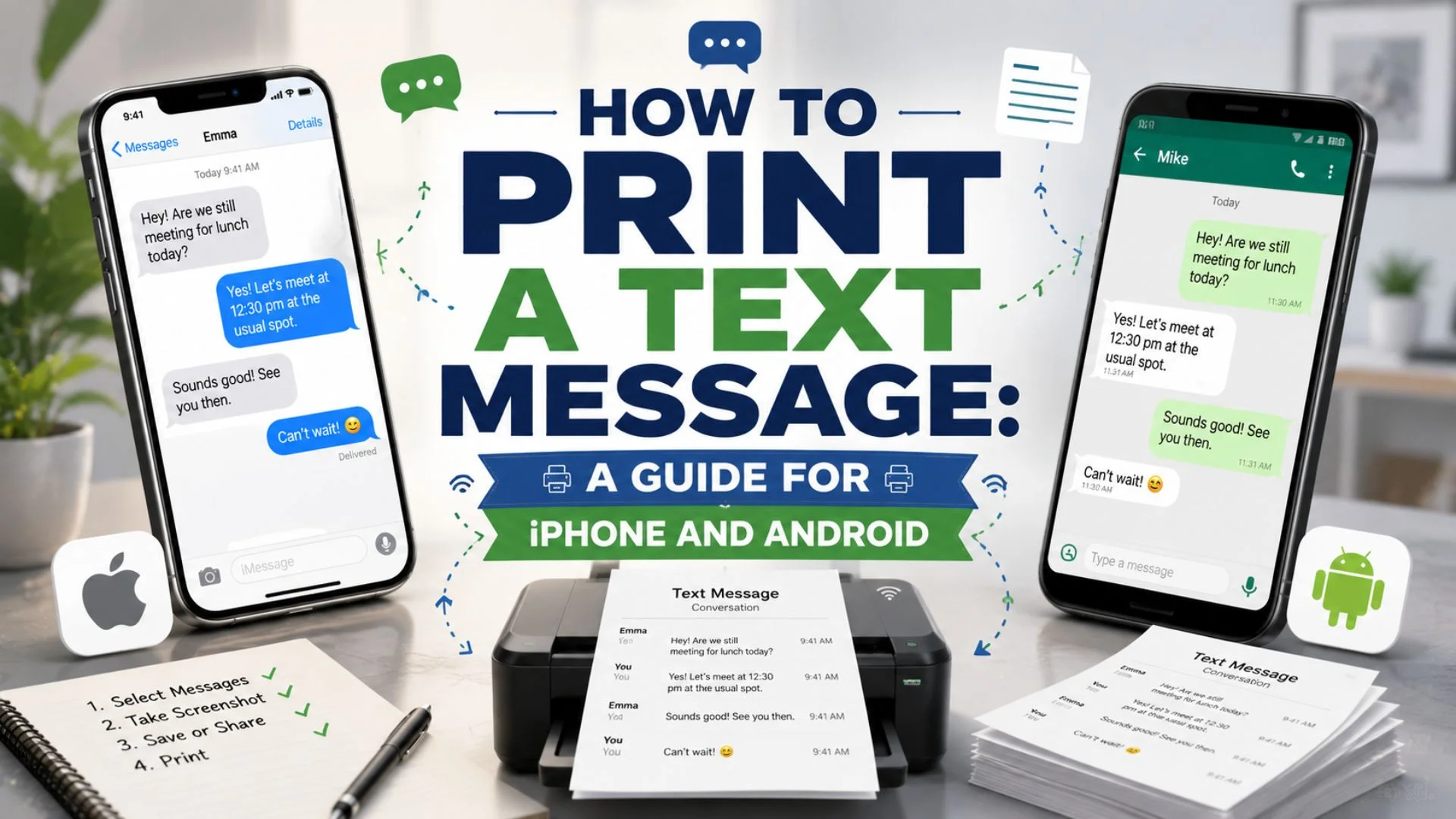
Have you ever needed a physical copy of an important conversation? Learning how to print a text message is easier than you think, whether you use an iPhone or an Android device. From preserving sentimental memories to preparing evidence for legal matters, there are several reliable methods to get your messages onto paper.
Neither Android nor iPhone offer a native print button for text messages, but that doesn’t mean you are out of luck . This guide covers everything from simple screenshots to professional software solutions. Whether you need to print a single message or an entire conversation spanning years, you will find the perfect method here. Let us walk you through the best options for your specific needs.
What Is the Easiest Way to Print a Text Message?
The easiest way to print a text message is by taking a screenshot of the conversation and printing the image. This method works on both iPhone and Android devices without any additional apps or software. Simply capture the screen, access the screenshot in your photo gallery, and select the print option if your phone is connected to a printer. For longer conversations, you can email the screenshot to yourself and print it from a computer.
Printing a Single Text Message on Android
Printing one specific text on Android is straightforward. These methods work well when you just need a single message. The key is using the Share feature available in most messaging apps.
- Press and hold the text message
- Select the hamburger menu (three vertical dots)
- Choose Share
- Select your printer app
- Press and hold the text
- Tap the hamburger menu
- Choose Share
- Select your email app
- Send it to yourself
- Open the email on your computer
- Print from there
- Open the conversation
- Take a screenshot
- Open Google Photos
- Find the screenshot
- Tap Share
- Select Print
- Choose your printer
- Select Save as PDF if needed
Printing a Single Text Message on iPhone
iPhone users also have simple options for printing individual messages. These methods are quick and effective for short conversations. The Share button is your best friend here.
- Press and hold the message
- Tap More
- Select the message
- Tap Forward
- Enter your email address
- Send it to yourself
- Open the email
- Print from your computer
- Press and hold the message
- Tap Copy
- Open Notes or Mail
- Paste the text
- Print from there
- Take a screenshot of the message
- Open the Photos app
- Tap the Share button
- Select Print
- Choose your printer
Printing an Entire Conversation on Android
Printing a whole conversation requires more effort. These methods help you capture everything without endless screenshots. Google Messages for Web is a free and excellent option .
- Use Google Messages for Web
- Open messages.google.com
- Sign in with your Google account
- Open the app on your phone
- Tap the profile icon
- Select Device pairing
- Scan the QR code
- Wait for messages to sync
- Open the conversation
- Press Ctrl+P in Chrome
- Choose Print or Save as PDF
- Install SMS Backup & Restore
- Tap Set Up A Backup
- Choose Messages only
- Select specific conversations if needed
- Complete the backup
- Tap Print from backups
- Select the backup file
- Choose the conversation
- Adjust paper size and orientation
- Save as PDF
- Print the PDF
Printing an Entire Conversation on iPhone
iPhone users have several options for exporting entire conversations. These methods are especially useful for legal or business purposes. Third-party tools offer the most comprehensive results .
- Use a third-party tool like iMazing
- Connect your iPhone to your computer
- Select the conversation
- Choose Print or Export to PDF
- Use the built-in Messages app on Mac
- Sync via iCloud
- Select the conversation
- Go to File > Print
- Save as PDF
- Email the conversation to yourself
- Press and hold a message
- Tap More
- Select all messages
- Tap Forward
- Enter your email address
- Send and print from your computer
Professional Tools for Printing Text Messages
For legal evidence or long conversations, professional tools offer the best results. These applications preserve timestamps and formatting perfectly. They are trusted by lawyers for court cases .
- SMS Backup & Restore (Android)
- Export to PDF or HTML
- Print directly from the app
- Save backups to the cloud
- Free version allows 6 messages
- Pro version unlocks all features
- EaseUS MobiMover (iPhone)
- Export messages to HTML file
- Transfer to computer for printing
- Works with both Mac and PC
- Connects via USB cable
- iMazing (iPhone)
- Professional-grade message export
- Print with timestamps and sender info
- Trusted by lawyers for court cases
- Offers comprehensive formatting options
- Droid Transfer (Android PC)
- Connects via QR code scan
- Print directly or save as PDF
- Full version required for complete conversations
- Free demo shows first 6 messages
- Legal Text Collector (Android)
- Creates PDF files for legal cases
- Organizes messages by conversation
- Filters by date range
- Exports as zip file
- Print Text Messages (Android)
- Select single conversation or date range
- Includes timestamps and sender numbers
- One-time in-app upgrade required
- Backup and restore functionality free
Using Screenshots for Quick Printing
Screenshots are the most accessible method for most people. They work on any device and require no special software. However, for long conversations, this method can be time-consuming .
- Open the conversation
- Take a screenshot
- Go to your photo gallery
- Find the screenshot
- Tap the share icon
- Select Print
- Connect to a printer
- Print directly
- Email the screenshot to yourself
- Open it on your computer
- Print from there
- Insert screenshots in Google Docs or Word
- Three to four screenshots per page
- Export as PDF
- Print the PDF
Using Google Messages for Web for Printing
If you use Google Messages, the web version is a fantastic option. It lets you access your texts on a computer for easy printing. This method works best for Android users with the default Messages app .
- Go to messages.google.com
- Sign in with your Google account
- Open the app on your phone
- Tap the profile icon
- Select Device pairing
- Scan the QR code
- Wait for messages to sync
- Open the conversation
- Press Ctrl+P in Chrome
- Choose your printer or Save as PDF
- Select paper size and orientation
- Adjust margins and scale
- Click Print or Save
Using SMS Backup Apps for Android
Third-party backup apps are excellent for printing entire conversations. They create clean, formatted documents you can print or save. The SMS Backup & Restore app is one of the most popular options .
- Install SMS Backup & Restore
- Open the app
- Tap Set Up A Backup
- Turn off Call Logs if only messages needed
- Tap Advanced Options
- Switch to Selected conversations only
- Mark your conversations of choice
- Tap Next
- Choose backup location (phone or cloud)
- Sign in to cloud service if selected
- Tap Back Up Now
- After completion, tap hamburger menu
- Select Print from backups
- Tap the backup file
- Choose the conversation
- Adjust paper size, orientation, and color
- Tap Save as PDF icon
- Choose where to save the file
Using Mac for Printing iPhone Messages
Mac users can leverage the built-in Messages app for printing. This method syncs your iPhone conversations to your computer. It requires iCloud Messages to be enabled .
- Ensure you are signed into the same Apple ID
- Enable Messages in iCloud on iPhone
- Open Settings
- Tap your name
- Tap iCloud
- Select Show All
- Tap Messages
- Enable Sync this iPhone
- Open Messages on your Mac
- Go to Messages > Settings > iMessage
- Ensure Enable Messages in iCloud is checked
- Select the conversation
- Go to File > Print
- Adjust settings as needed
- Click PDF and select Save as PDF
- Print the PDF
How to Print Text Messages for Court or Legal Purposes
Legal proceedings require specific formatting and authentication. Text messages can be vital evidence in divorce, custody disputes, civil lawsuits, and criminal trials . Always consult your attorney before submitting evidence.
- Identify Key Conversations: Focus on messages containing important information such as dates, agreements, confessions, or threats . Context matters significantly for interpretation.
- Backup Your Messages: Create a backup before extraction to prevent data loss. iOS users can use iCloud Backup or iTunes Backup. Android users can use Google Backup or third-party apps like SMS Backup & Restore .
- Extract Messages Properly: Use professional tools like iMazing or EaseUS MobiMover that preserve metadata. These tools maintain timestamps, sender names, and phone numbers. For Android, SMS Backup & Restore or Droid Transfer are reliable options .
- Format for Court: Arrange messages in chronological order. Clearly label who is speaking in each exchange. Highlight key messages if needed. Include necessary context or explanations .
- Certify the Printouts: Prepare an affidavit stating the origin of the messages and how they were extracted. Obtain a witness statement if possible. Have your attorney review everything before the court date .
- Use Proper Tools: Apps like Legal Text Collector and SMS Backup, Print & Restore are specifically designed for creating court-admissible PDFs . TextKeep also offers AI-driven export for legal cases .
Important Considerations for Printing Text Messages
Privacy and legality are crucial when printing text messages. Never access or print someone else’s messages without permission. Exporting, sharing, or using private messages without consent may violate privacy laws . Always respect privacy and comply with applicable laws when handling message data.
- Deleted Messages: Some recovery tools can help recover deleted texts, but success rates vary. Act quickly if you need to recover deleted messages for legal purposes .
- Cross-Examination: Be prepared to explain how messages were extracted and verified. Your thorough preparation can strengthen your case significantly .
FAQs
Can I print text messages directly from my phone?
Neither iPhone nor Android have a native print button for text messages. However, you can take a screenshot and print that image if your phone is connected to a printer. You can also use third-party apps like SMS Backup & Restore for Android or iMazing for iPhone .
What is the best app for printing text messages?
The best app depends on your device. SMS Backup & Restore is excellent for Android and allows you to save conversations as PDF, Word, Excel, CSV, JPG, or HTML . iMazing is highly recommended for iPhone users, especially for legal or professional purposes . EaseUS MobiMover also works well for both devices .
Can I print text messages without a printer?
Yes, you can save your messages as PDF files instead of printing them on paper. This is a great alternative for archiving or sharing. Most methods described above include a “Save as PDF” option . You can then store the PDF on your computer or in the cloud.
Is it legal to print text messages for court?
Yes, text messages are admissible as evidence in many legal proceedings . However, you must ensure they are properly authenticated. Use professional tools that preserve metadata. Consult with your attorney for specific requirements in your case.
How do I print an entire conversation on Android?
Use Google Messages for Web to access your conversation on a computer and print it from there . Alternatively, use SMS Backup & Restore to create a PDF of the entire conversation . Droid Transfer is another excellent option for Windows users .
How do I print an entire conversation on iPhone?
You can use iMazing or EaseUS MobiMover to export and print entire conversations . If you have a Mac, you can also use the built-in Messages app synced via iCloud . Emailing the conversation to yourself is a free but more time-consuming option .
Is there a free way to print text messages?
Yes, screenshots and email forwarding are both free methods . Google Messages for Web is also free and works well for Android users . SMS Backup & Restore offers a free version that allows you to print up to six messages at a time .
Conclusion
Learning how to print a text message opens up many possibilities for preserving important conversations. Whether you choose the simplicity of screenshots, the convenience of email forwarding, or the professionalism of dedicated software, there is a method that fits your needs. For quick and easy printing, screenshots work perfectly. For legal evidence or long conversations, consider professional tools like iMazing or SMS Backup & Restore. Take action today and save those precious messages in a format that lasts.

Ethan Brooks is a content writer specializing in messages, wishes and modern communication trends. He creates simple, engaging, and relatable content that helps people express their thoughts and emotions in the best way possible.